

As a CAT 2020 Online Classroom student, you have been enrolled in a specific batch of your choice i.e. weekday batch or weekend batch. Three live lectures per week will take place as per the timing of the batch allotted to you.
The CAT 2020 Online Classroom is segregated into six broad categories. Each category has certain academic courses with dedicated learning pages. These categories comprise of relevant academic topics for entrance exam.
Each batch will have three live lectures per week. The dates of the lectures will be available on the learning pages and will also be sent to you through SMS/E-mail.
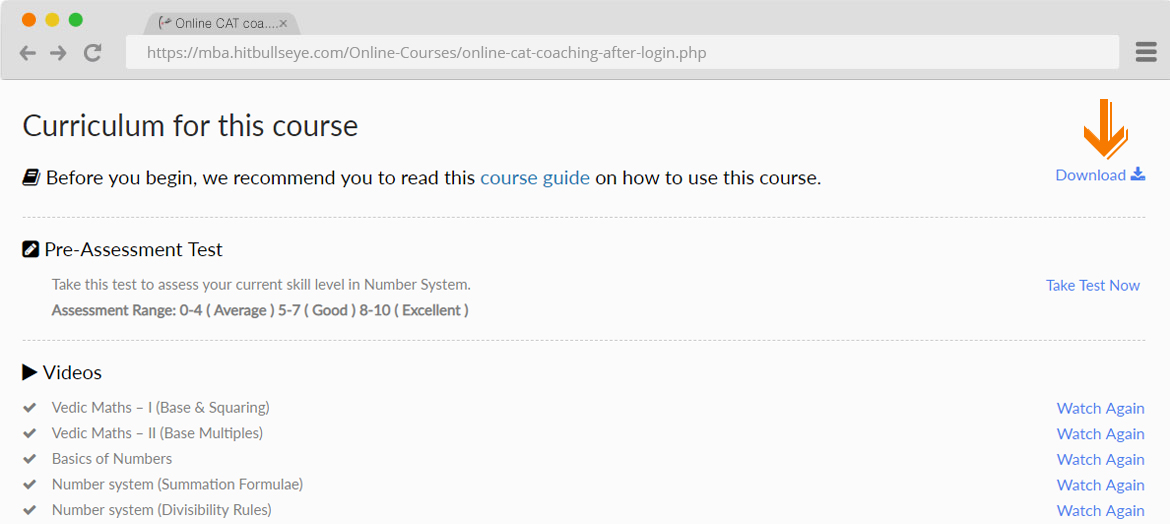
Each academic course has a single learning page on which multiple learning resources are available. While learning, we advise you to follow the action-steps provided below to gain maximum learning from this course.





We’ve also made a unique course manual for each academic course which is available on the learning page. The course manual will provide you instructions with actionable learning steps available on the respective learning page.
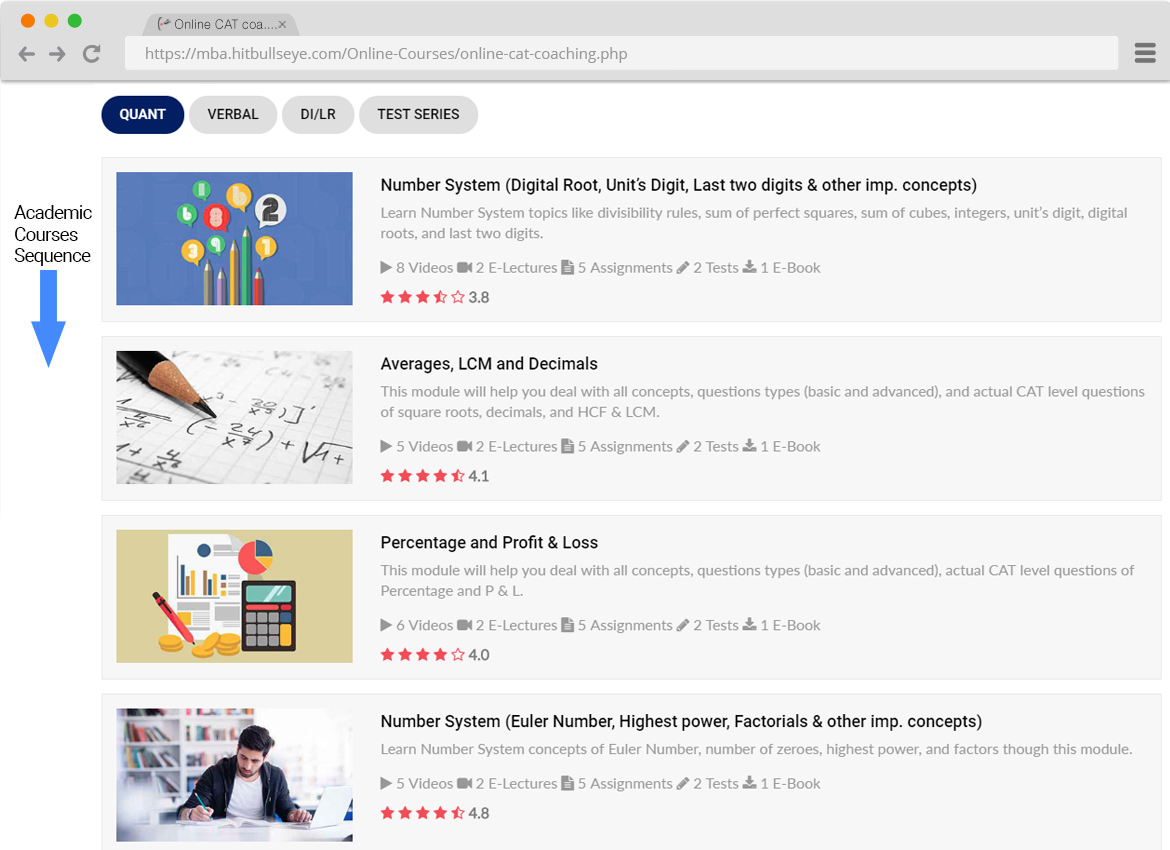
The academic courses will take place as per the sequence of tiles mentioned on the Full Course page. Academic Course Sequence:
You will be sent a URL and password 15 - 30 minutes prior to the start of the live lecture on your registered mobile number and e-mail address, which will enable you to attend the live lecture.
You will be able to view the complete video of live lecture on your desktop/laptop/mobile. Students can interact with the instructor using an interactive whiteboard.
All the live lectures will also be available in a recorded format in your learning page.
In case, a live lecture gets cancelled due to technical or other issues, it will be rescheduled on a later date, which will be duly communicated.
We highly recommend you to attend each and every live lecture at its specified times, since you stand to gain the most by asking doubts in real time to your instructors.
To attend a live lecture, you need to download the following ‘Zoom’ software:
We suggest you to refer the following steps to familiarise yourself with the Live Lecture process:



You may also refer to the following videos to understand the flow
A sms/email will be sent 30 minutes before live lecture. Live lectures are conducted on a regular basis and details will be updated here. Once available, you can view previously recorded live lecture.
In case you are not receiving the emails in your primary gmail inbox, move our emails from the promotions/other tab to the primary tab so that you are able to receive all future communications.
Click on the mentioned link to watch a video on how to move your spam mails to your inbox Click Here
You can unregister for DND services on your mobile by either SMS or Voice call to 1909. SMS STOP to 1909 or Call at 1909 to speak with either the customer care representative or IVR and then follow the instructions to unregister your number from DND. After this, you will get an SMS confirming your request for the same.
To facilitate section-wise discussions, you will be added to the Telegram Discussion group. There are innumerable benefits which you will incur after you become a part of this group. Your queries related to the course will be answered; you can be a part of the discussions and finally be updated with the lecture schedule.The Telegram Discussion Group link invite will be sent to your registered email IDs.
Note: Joining through Telegram Discussion Web automatically gets you added to Telegram Discussion group on your mobile.
This Telegram Discussion Group link invite will also be sent to your registered email IDs.
The purpose of making the Telegram Discussion groups is to discuss topics relevant to the course content and help you to excel in the entrance exam. So, please keep in mind the following points:
If you fail to adhere to any of the conditions mentioned above, Hitbullseye reserves the right to remove you from all the Telegram Discussion groups..
In case you have any issue with your batch timing, you can request for the change of batch timing by writing. Please note the batch timing will only be changed subject to availability of seats in other batches.